Skip to content
Smart AC Solutions
  • CategoriesExpand
    • AC Troubleshooting
    • Air ConditionerExpand
      • Portable Air Conditioners
      • Room Air Conditioners
      • Split System Air Conditioners
      • Window Air Conditioners
      • Reviews & Prices
    • Thermostat Solutions
    • Calculator
  • Directory
  • Request HVAC Service
  • Join Our Pro NetworkExpand
    • HVAC BusinessesExpand
      • Residential
      • Commercial
      • Emergency Services
    • Add Business
  • Register
  • Login
  • Forgot Password?
Smart AC Solutions
Air Conditioner

Why Is Your Hisense Air Conditioner Wifi Not Working?

ByRalph P. Sita Updated onJanuary 2, 2025

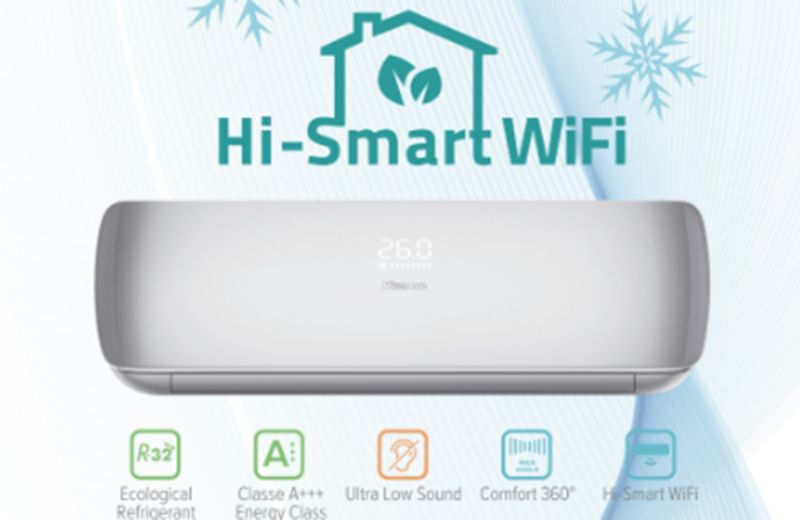
Navigating the Wi-Fi connectivity issues with Hisense Air Conditioners can be daunting, but understanding and addressing key challenges can efficiently restore your smart cooling system’s functionality. These air conditioners often encounter hurdles when maintaining a stable Wi-Fi connection, causing frustration for users. To overcome these roadblocks, it is essential to follow structured troubleshooting steps such as checking power and connectivity, resetting Wi-Fi settings, and updating firmware. By systematically addressing these issues, you can effectively resolve connectivity problems and unlock seamless operation of your Hisense air conditioner, ensuring your smart cooling oasis functions optimally.

Page Contents

Toggle
  • Hisense Air Conditioner Wifi Not Working
    • 1. Power & Connectivity Check
    • 2. Reset WiFi Settings
    • 3. Consider Proximity
    • 4. Router & Network Maintenance
    • 5. Firmware Updates
    • 6. Factory Reset (if needed)
  • How to Connect a Hisense Air Conditioner to WiFi?
  • How to Turn On WiFi on Hisense AC?
  • How to Reset Hisense Smart AC?
  • How to Connect an AC Remote to WiFi?
  • How to Connect a Hisense Phone to WiFi?
  • Hisense AC WiFi Reset
  • Next Steps
    • Related Articles

Hisense Air Conditioner Wifi Not Working

Hisense Air Conditioner Wifi Not Working

Facing connectivity hurdles with your Hisense air conditioner’s WiFi? Troubleshoot effectively with these steps:

1. Power & Connectivity Check:

   – Ensure the AC is plugged in and the WiFi router is connected and functioning.

2. Reset WiFi Settings:

   – Access WiFi settings on the remote or display panel.

   – Choose ‘forget’ or reset the WiFi network, then reconnect, entering the accurate password.

3. Consider Proximity:

   – Relocate the AC closer to the router if signal strength is weak due to distance.

4. Router & Network Maintenance:

   – Restart the WiFi router and confirm other devices’ connectivity.

   – Disconnect devices to reduce network congestion and verify the correct SSID and password.

5. Firmware Updates:

   – Update the air conditioner’s firmware and ensure the controlling app is up to date.

6. Factory Reset (if needed):

   – As a final resort, perform a factory reset, knowing it will erase all settings, requiring a fresh setup.

How to Connect a Hisense Air Conditioner to WiFi?

To link your Hisense air conditioner to WiFi, follow these guided steps:

– Ensure the air conditioner is on and functioning well.

– Access the WiFi network name (SSID) and password.

– Use the air conditioner’s remote to access menu options.

– Find “WiFi Setup” or” Network Settings” in the menu.

– Choose “WiFi Setup” or “Network Settings.”

– A list of available networks will appear; select your home WiFi.

– Input the WiFi password using the remote control.

– Use proper capital letters and special characters.

– Confirm the WiFi selection; the connection process will begin.

– Upon successful connection, a confirmation message or WiFi icon will display.

– If available, download and set up the remote control app.

– Follow app instructions to link it with your air conditioner via WiFi.

– Double-check the entered WiFi password and router functionality if the connection fails.

– Ensure the air conditioner is within a reasonable range of the router.

– Refer to the manufacturer’s website or user manual for specific troubleshooting guidance.

– Once connected, use the remote control app to adjust settings and temperature remotely for added convenience.

How to Turn On WiFi on Hisense AC?

When connecting your Hisense air conditioner to your WiFi, follow these steps:

1. Make sure the AC is plugged in and within the router range.

2. Press and hold the WiFi button for 3 seconds until it blinks.

3. On your device, connect to the Hisense-XXXXXX network.

4. Use password 1234567890 and select “Join Network”.

5. Launch the Hisense Home app and follow the setup prompts for completion.

How to Reset Hisense Smart AC?
Hisense Air Conditioner Wifi Not Working

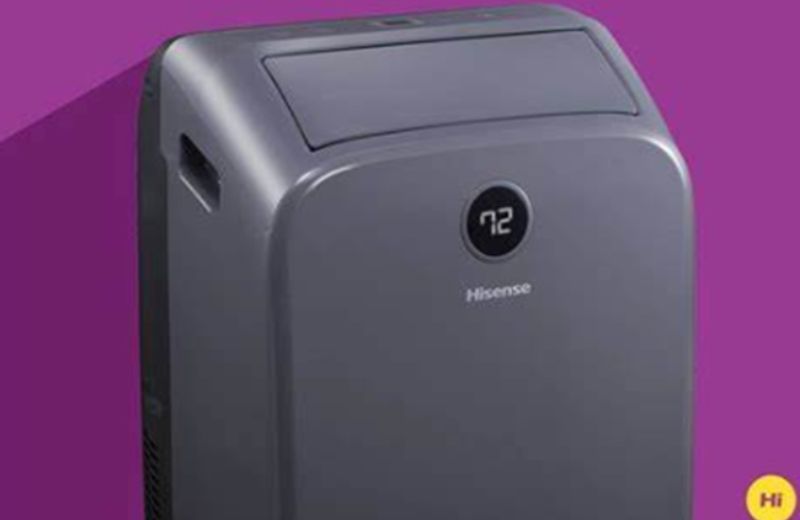
To reset your malfunctioning Hisense smart AC, follow these steps:

1. Ensure the AC is plugged in and switched on.

2. Locate the reset button, normally behind the control panel or on the unit’s side.

3. Press the reset button for 5 seconds, then release it.

4. Wait for the AC to restart and test its functionality afterwards.

How to Connect an AC Remote to WiFi?

To sync your AC remote with WiFi, ensure compatibility and follow these easy steps: find the WiFi settings on your remote, input your network’s password and it’s done. Now control your AC from anywhere within your home.

How to Connect a Hisense Phone to WiFi?

Your home Wi-Fi network often hums along flawlessly, yet at times, changes or

troubleshooting are required. Connecting your Hisense phone to Wi-Fi is direct with these steps:

1. Open the Settings app on your Hisense phone.

2. Tap “Wi-Fi” and enable it if it’s off. Ensure Airplane Mode is disabled.

3. Allow your phone to scan for available networks.

4. Select your network from the list and enter the password if prompted.

5. Once connected, a checkmark will show up next to your network name.

Hisense AC WiFi Reset

To troubleshoot a failed WiFi connection on your Hisense air conditioner, follow these steps:

1. Ensure the AC is within router range with no obstructions.

2. Try unplugging the air conditioner for 30 seconds, then reconnect it to reset the WiFi.

3. If needed, perform a factory reset by holding the “reset” button for 3 seconds. Note: This will erase custom settings; ensure you have them noted down.

4. After resetting, attempt to reconnect to WiFi.

Next Steps

Troubleshoot the Hisense AC Wi-Fi problems with these steps. Connect seamlessly, reset if needed, and enjoy remote control. Stay cool and connected with your Hisense air conditioner.

5/5 - (1 vote)
Ralph P. Sita
Author: Ralph P. Sita

Ralph P. Sita is a seasoned professional with deep roots in both the HVAC and tech industries. His family’s business, Ralph P. Sita, Inc., is a locally owned and operated HVAC contractor with over 42 years of experience, serving the DC, Maryland, and Virginia areas. The company specializes in residential, commercial, and industrial heating, ventilation, and air conditioning services, offering everything from installation and maintenance to custom ductwork and indoor air quality solutions -www.ralphpsita.com. A former CPA, he spent the last decade as co-founder and co-CEO at Cybrary, a leading platform for cybersecurity and IT training. Cybrary became the largest, most well-known cybersecurity training businesses in the industry under his leadership. Smart AC Solutions is an opportunity to give back to the HVAC community by providing reliable, actionable information on all things heating and cooling.

Related Articles:

  1. How Good Is Hisense Air Conditioner? Feel the Difference with Hisense
  2. Why Does My AC WiFi Not Working After Sudden Power Cut?
  3. My Hisense Remote Stopped Working
  4. Lg Air Conditioner Wifi Not Working? Apply This Reset Method
Ralph P. Sita

Ralph P. Sita is a seasoned professional with deep roots in both the HVAC and tech industries. His family’s business, Ralph P. Sita, Inc., is a locally owned and operated HVAC contractor with over 42 years of experience, serving the DC, Maryland, and Virginia areas. The company specializes in residential, commercial, and industrial heating, ventilation, and air conditioning services, offering everything from installation and maintenance to custom ductwork and indoor air quality solutions -www.ralphpsita.com.

A former CPA, he spent the last decade as co-founder and co-CEO at Cybrary, a leading platform for cybersecurity and IT training. Cybrary became the largest, most well-known cybersecurity training businesses in the industry under his leadership.

Smart AC Solutions is an opportunity to give back to the HVAC community by providing reliable, actionable information on all things heating and cooling.

Linkedin

Try our new Smart AC Solutions GPT

Description of Smart AC Solutions GPT and link to access.

  • experience-the-excitement-of-live-football-your-ultimate-guide-to-watching-the-b
    by vtorralba
  • Air Conditioner Troubleshooting: 10 Common Issues and Solutions
    by alovell
  • Central Heat and Air Unit Not Working? Troubleshooting Guide
    by alovell
  • HVAC Moisture Control Issues: Causes and Effective Solutions
    by alovell
  • Common Problems with Ducted Air Conditioning and How to Fix Them
    by alovell
  • Common Issues with Two-Stage Air Conditioners and How to Fix Them
    by alovell

Sites we love:
TrainACE

Facebook Twitter Pinterest YouTube

SmartACSolutions is your go-to source for the latest in heating and air conditioning news, tips, and expert advice.

  • About Us
  • Contact Us
  • Disclaimer
  • Privacy Policy
  • Sitemap

© 2025 Smart AC Solutions । DMCA Protected

SmartACSolutions.com is a property of FieldBin Inc.

Change Location
Find awesome listings near you!
  • Categories
    • AC Troubleshooting
    • Air Conditioner
      • Portable Air Conditioners
      • Room Air Conditioners
      • Split System Air Conditioners
      • Window Air Conditioners
      • Reviews & Prices
    • Thermostat Solutions
    • Calculator
  • Directory
  • Request HVAC Service
  • Join Our Pro Network
    • HVAC Businesses
      • Residential
      • Commercial
      • Emergency Services
    • Add Business
  • Register
  • Login
  • Forgot Password?